Tmux Floating Panes (v3.7+)

TL;DR — tmux can float a pane above the layout: tmux new-pane opens one (bound to Ctrl+b *), Ctrl+b @ toggles a pane between floating and tiled, and mouse drags move and resize floats (on tmux 3.7, enable mouse mode with set -g mouse on first; 3.8 enables it by default). On tmux 3.2–3.6, display-popup is the closest equivalent (though popups are modal).
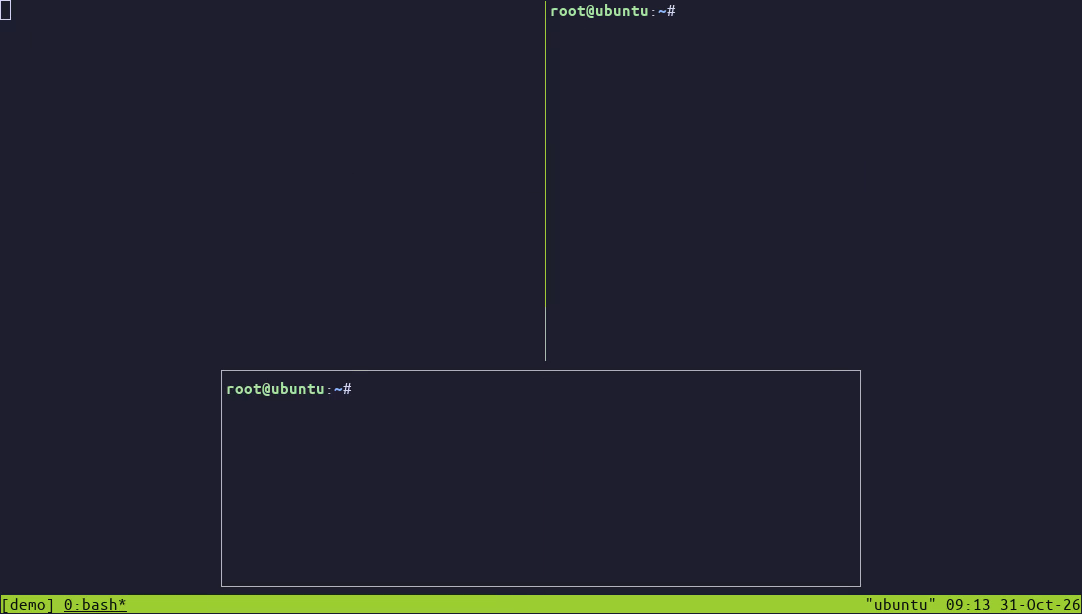
What floating panes change
Until 3.7, every pane shared the window grid — zoom (Ctrl+b z) was the closest thing to "big". A floating pane hovers above the grid in its own bordered box, leaves the underlying layout untouched, and closes without rearranging anything. Perfect for temporary work: a scratch shell, a log tail, an agent monitor.
Introduced in 3.7 — with move and resize limited to the mouse — floating panes became fully scriptable in 3.8: move-pane and resize-pane accept them, split-window inside a float spawns an adjacent float, swap-pane works, and a Ctrl+b g key table snaps floats around the window.
Basic usage
# open a floating pane running your shell
# default size: half the window width, a quarter of the height
tmux new-pane

# run a command in one
tmux new-pane -d 'tail -f /var/log/app.log'

# size with -x/-y, position the top-left corner with -X/-Y (% works)
tmux new-pane -x 60% -y 40% -X 20% -Y 25%

# close it like any pane: Ctrl+b x
Default bindings to get you started:
| Key | Action |
|---|---|
| Ctrl+b * | Open a new floating pane |
| Ctrl+b @ | Toggle the pane between floating and tiled |
| Ctrl+b g | Move and resize table: corners, edges and quarters |
| Drag a side, bottom border or corner | Resize the float |
| Drag the top border | Move the float |
| Alt-drag anywhere | Move the float |
| Ctrl-drag anywhere | Create a float sized to the drag |
Mouse mode. The drag gestures above need tmux's mouse option. tmux 3.7 introduced floating panes while mouse was still off by default, so add set -g mouse on to ~/.tmux.conf (or run tmux set-option -g mouse on) before using them. tmux 3.8 flipped the default to on, so no setting is needed there; check yours with tmux show-options -g mouse. With mouse mode off tmux never asks the terminal for mouse reports, so border drags, Alt-drag, Ctrl-drag and click-to-select do nothing.
Move, resize and stack
Ctrl+b g enters a movement table for floats: 1–4 snap to corners, arrow keys centre the float on one edge, M+1–4 snap and resize to a quarter of the window, M+arrows snap and resize to half the height or width (full span the other way), and 0 fills the whole window.
For scripts and binds, the commands are:
# snap to an edge, corner or centre
tmux move-pane -P bottom-centre

# stack floats on top of each other (z-index, 0 is the front)
tmux move-pane -z 1

# resize: on floats the up/down/left/right deltas target the borders
tmux resize-pane -U 3
# or set an absolute size
tmux resize-pane -x 80% -y 75%
The move-pane positioning options (-D/-L/-P/-R/-U/-X/-Y/-z) only apply to floats: run one against a tiled pane and tmux answers pane is not floating — point it at a float with -t. A bare move-pane still behaves like join-pane. resize-pane also resizes tiled panes normally; only on a float do its deltas target the borders, and there they accept negative values too (resize-pane -U -3 shrinks the pane from the top).
move-pane also takes absolute positions (-X/-Y) and named spots like -P front or -P backward to reorder floats. Related options: pane-border-status accepts top-floating/bottom-floating to show border titles only on floating panes, and pane-border-lines none removes the borders from all floating panes at once. Both are window and pane options: set-option -w applies them to all panes in the window (or set -g for every window), and set-option -p overrides a single pane:
tmux set-option -w pane-border-status top-floating   # border titles only on floats
tmux set-option -w pane-border-lines none            # no borders on floats
Scripting flags that matter
new-pane mirrors split-window options and adds a few of its own (-A, -L, -M, -O/-K/-C/-D, and the float geometry -x/-y/-X/-Y). -T (title) and -B (border lines) are shared with split-window in 3.8. new-pane -L makes new-pane create a tiled split instead of a float; pointed at a floating pane it fails with can't split a floating pane, where plain split-window would create an adjacent float:
tmux new-pane -T 'scratch'        # set the pane title
tmux new-pane -B heavy            # border line characters
tmux new-pane -A                  # keep the float visible above a zoomed pane
tmux new-pane -W 'vi afile'       # block until the command exits, return its exit status
tmux new-pane -k 'make'           # keep the pane open after the command exits, until a key
tmux new-pane -E                  # empty pane, nothing running in it
# -I creates an empty pane and forwards *stdin* into it
printf 'hello\n' | tmux new-pane -dI
tmux new-pane -M                  # mouse-drag only: the new float is resized to follow the drag
The #{pane_floating_flag} format is 1 when the current pane floats, so binds can branch on it — for example if-shell -F '#{pane_floating_flag}' 'join-pane' 'break-pane -W'.
Modal panes
new-pane -O creates a modal float — always active and blocking the other panes while open, the same mechanism buffer mode's editor now uses. A modal float also stays above a zoomed pane on its own — you do not need -A for that:
# all keys, including the prefix, go to it; Esc or C-c closes it
tmux new-pane -O -K -D

# or close it when the mouse is clicked outside it
tmux new-pane -O -C
Modes can live in floats too: choose-tree -h hides the float holding the mode and -k kills that float when the mode exits:
bind s 'new-pane -x50% -y50% -E; choose-tree -hks'Three recipes worth stealing
1. Scratch terminal — a float for quick one-off commands, sized generously:
bind S new-pane -x 80% -y 75%2. Log watcher — a slim float across the bottom:
bind L new-pane -d -x 95% -y 20% -X 2% -Y 79% 'tail -F ./app.log'3. Agent monitor — watch an agent session's output without leaving your layout:
bind M new-pane -d -x 60% -y 50% \
  'while true; do tmux capture-pane -p -t agent-review | tail -30; sleep 5; clear; done'
On tmux 3.2–3.6: display-popup
The popup primitive has existed since tmux 3.2 and covers the same ground for pinned-size overlays:
bind S display-popup -w 80% -h 75% -E
bind L display-popup -w 95% -h 20% -E 'tail -F ./app.log'
Popups grab input while open. Without -E, Esc or Ctrl+c closes them; with -E those keys go to the running command instead, and the popup closes the moment the command exits — which is what makes Ctrl+d out of a popup shell work. Since 3.6, -k lets any key dismiss a popup once its command has exited. Floating panes behave like real panes (they can be resized, re-tiled and re-floated), but a zoomed tiled pane hides them unless the float was created with -A or is modal (new-pane -O). Check your version with tmux -V, and if you are behind, the macOS or install guide covers upgrading.
Floating panes FAQ
Which tmux version added floating panes?
tmux 3.7 introduced floating panes, with move and resize limited to the mouse. tmux 3.8 made them scriptable: move-pane and resize-pane now accept floats, split-window inside a float creates an adjacent float, and the Ctrl+b g table snaps floats around the window.
How do I create a floating pane in tmux?
Run tmux new-pane from a shell, or press Ctrl+b then * inside tmux. The default float is half the window width and a quarter of the height; set its size with -x and -y and its top-left corner with -X and -Y, using percentages if you like.
How do I move or resize a floating pane?
Press Ctrl+b then g: 1-4 snap to corners, the arrow keys centre the float on an edge, M+1-4 resize it to a quarter of the window, and 0 fills the window. In scripts use move-pane -P bottom-centre, move-pane -z 1 to restack, or resize-pane -x 80% -y 75% (tmux 3.8).
What is the difference between a floating pane and a popup?
A floating pane is a real pane: it can be resized, re-tiled and scripted, and it does not block input. A display-popup (tmux 3.2+) is modal: it grabs every key while open, its size is fixed, and with -E it closes as soon as the command exits.
Why does my floating pane disappear when I zoom a pane?
A zoomed tiled pane covers normal floating panes. Create the float with new-pane -A to keep it above the zoom, or use a modal float (new-pane -O), which stays on top by default.
How do I close a floating pane?
Like any pane: press Ctrl+b then x, or run tmux kill-pane with its pane id. A pane opened with new-pane -W makes tmux wait for the command and return its exit status, while -k keeps the pane open until a key is pressed.